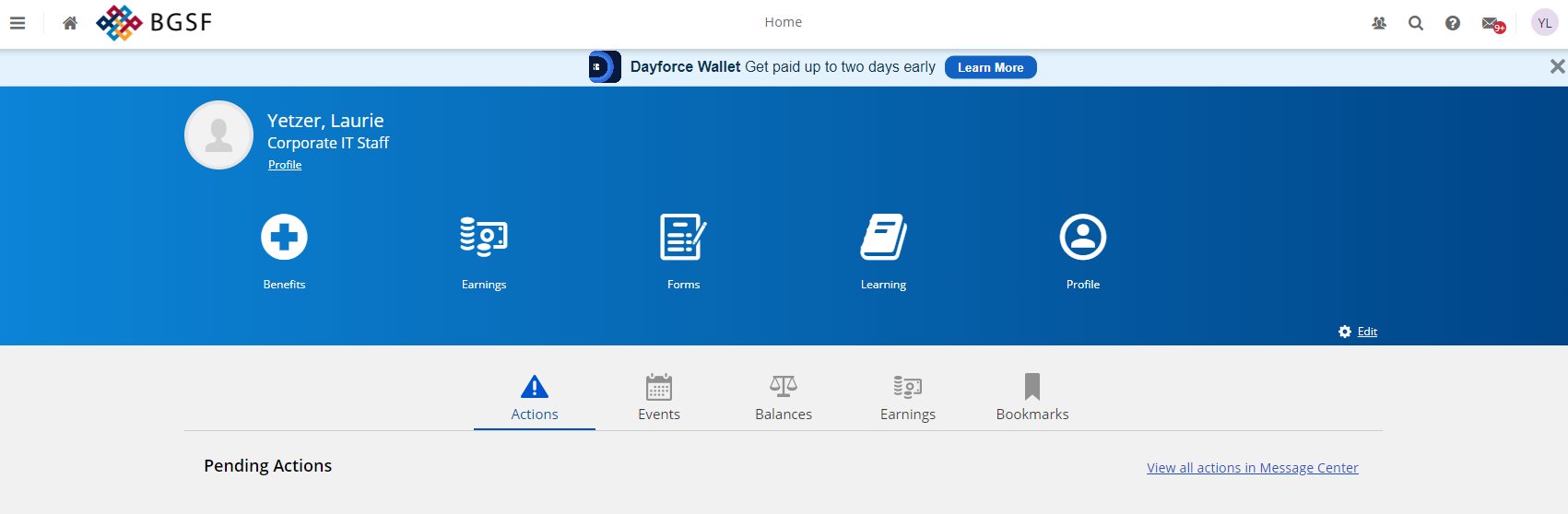
Dayforce Login Issues for Internal Employees

Sep 25, 2025
 179
179
Close all Browsers
Launch Google Chrome
On the Google Chrome click on the three horizontal dots

Click on History > History

Click on Delete Browsing data
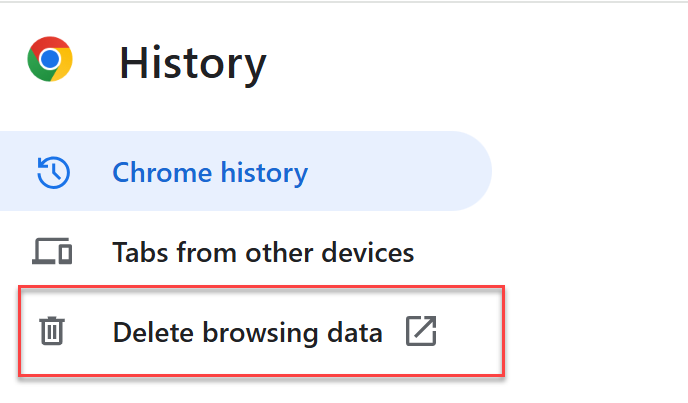
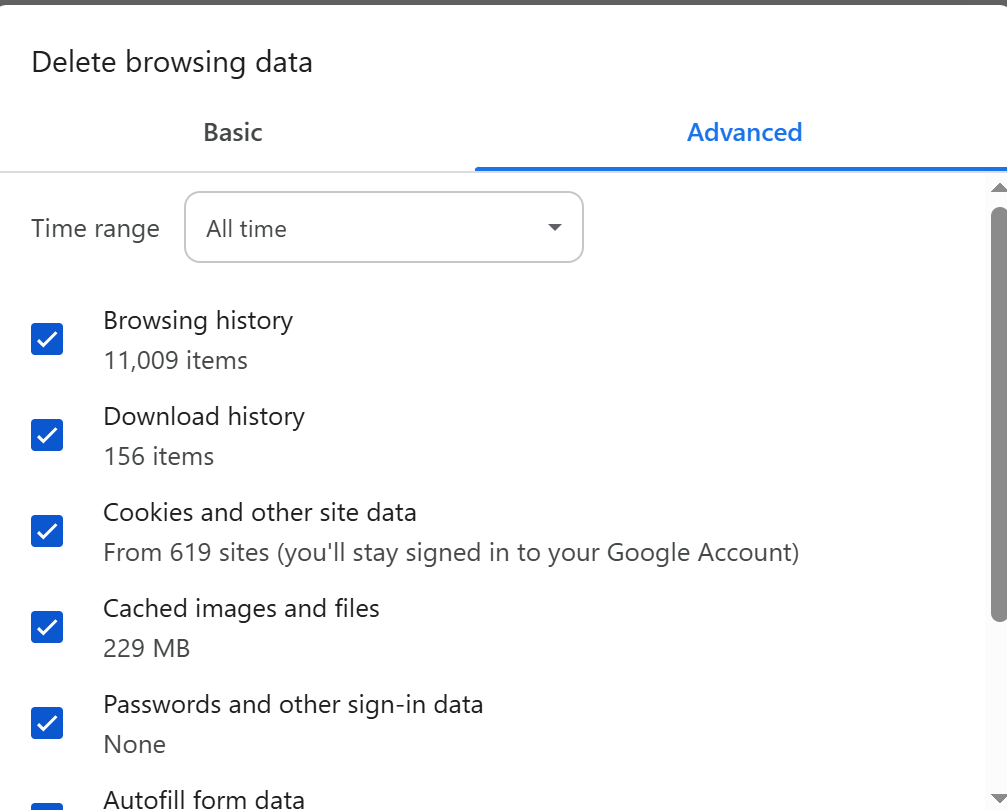
Click on the Advanced Tab
Update the Time Range if needed (select All Time)
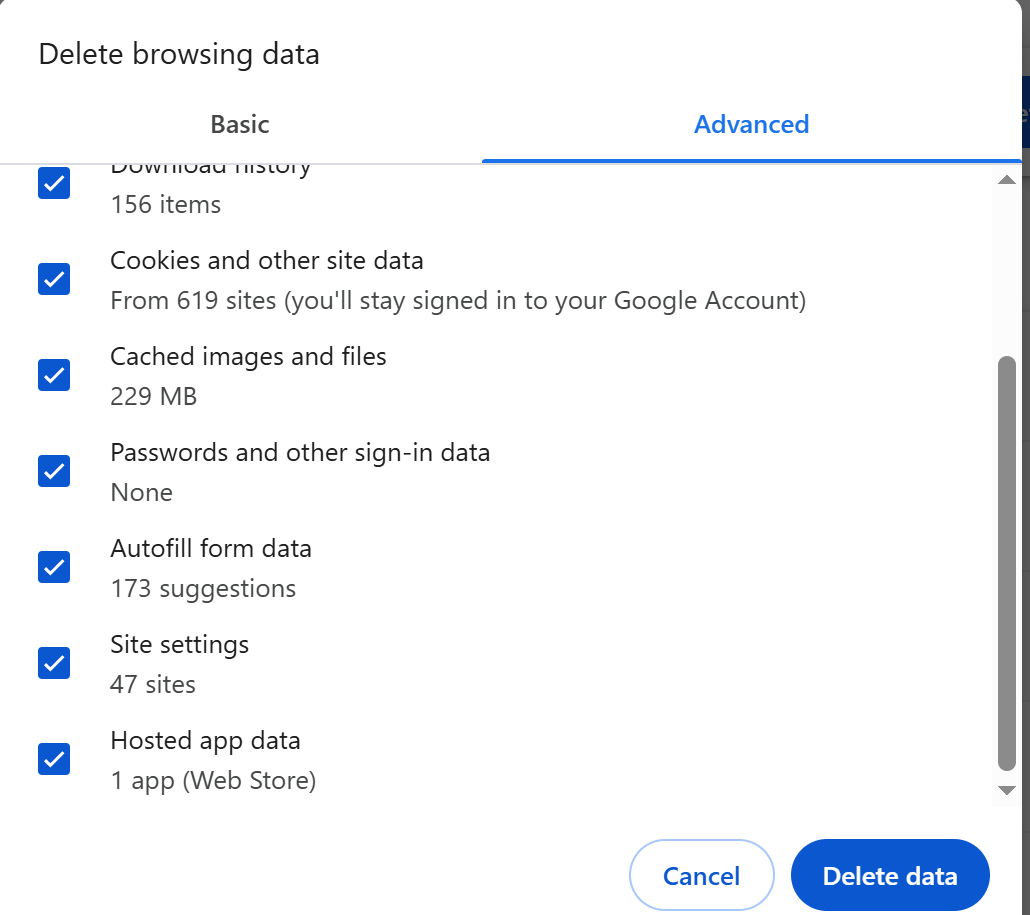
Scroll down
Select Password and other sign-in data
Select the Autofill form data
Select Site Settings
Select the Hosted app data.
Click on the Clear Data Button
Close the browser
Launch Google Chrome
Click on the Dayforce SSO Link again
https://sso.dayforcehcm.com/BGSF
Select the BGSF Employee
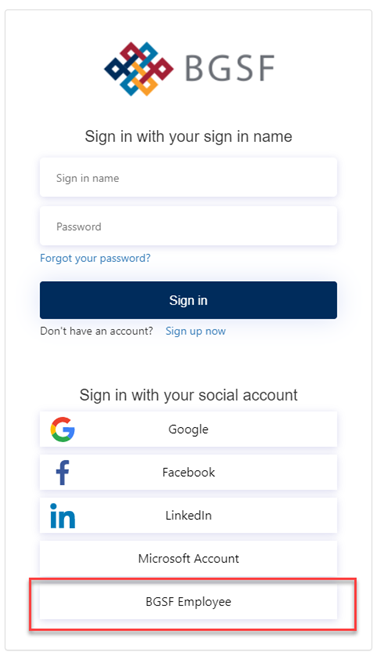
Log you into Dayforce