


 50
50
How do I access Emburse Enterprise?
Note: As of January 17, 2025, Emburse ChromeRiver has been rebranded to Emburse Enterprise. The changes are to logos, branding and colors only.
- Log in from your desktop at https://app.ca1.chromeriver.com/login
- Download the mobile app
Note: These instructions show examples for logging in from desktop, however it is the same instructions for both desktop and mobile app
- Go to https://app.ca1.chromeriver.com/login or from Emburse Enterprise app on your phone.
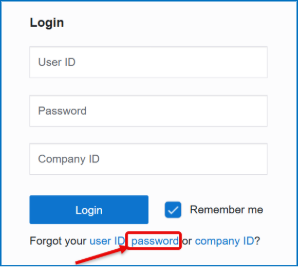
- When logging in for the first time, click 'password'
3. Enter your email associated with BGSF
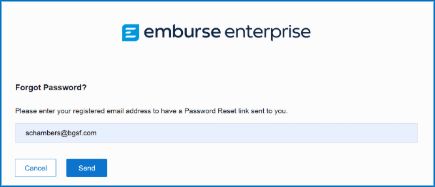
4. Click Send
5. You will be sent an email with instructions to set a password
6. Follow the steps to set up a password.
7. You can now login.
8. Enter your email address and new password:
9. In the Company field enter: BGSF
10. Click Login
Note: The CR Snap and ChromeRiver Apps are being decommissioned on
11/30/2025 you will need to access via Web application only as the
Emburse Enterprise Mobile app is SSO only which is not compatible with
BGSF Set-up
The following guides will help you with creating and managing Expense Reports:
Employees:
CR_Create and Submit an Expense Report_Job Aid_V1.3_11032025_Approved.pdf
CR_Capture Expense Receipts_Job Aid_V3.0_10312025 Approved.pdf
CR_View and Track Your Expense Reports_QRT_V3.0_11032025_Approved.pdf
Managers:
CR_Approve Expense Reports_Job Aid_V2.0_12022025_Approved.pdf

